Learn how to generate ad copy with AI using DFIRST. Connect your brand to a Text Node, write a short brief, and get campaign-ready variants in minutes.
Text Node
Claude Opus
Data Room
Brand Guidelines
Other
Past Performing Ads
You're launching a campaign Friday. You need ad copy that sounds like your brand. Three Facebook variants, two Instagram captions, a cold email opener. All by Wednesday. The usual options are slow. Brief a copywriter, wait for drafts, revise, ship. Or open ChatGPT and paste your brand voice into yet another fresh conversation.
DFIRST shortens it. You upload your brand guidelines and past winning ads once. After that, every Text Node you create already has that context. You write a short instruction, and the AI produces copy that sounds like you, not generic ad copy.
KEY TAKEAWAYS
You will be able to generate on-brand ad copy in DFIRST using a single Text Node — without rewriting a long prompt for every campaign.
You will know how to connect your Data Room files so the AI uses your real brand voice and past converting ads as context.
You will have a reusable workflow that produces multiple ad variants for testing in one generation.
What you're working with
Ad copy generation in DFIRST runs through the Text Node. It's an interactive card on your Whiteboard that talks to large language models. You write a prompt, pick a model, and the output appears in the card. From there, you can wire it into other nodes — image generation, video, more text — to keep building.
What's different about Text Nodes is how they handle context. Context doesn't go in the prompt itself. It comes in through the connectors, from whatever upstream nodes you've linked to. Your brand guidelines, your past ads, a research output. Anything wired into the Text Node feeds in automatically. The prompt only carries the instruction. (For more on what to put in your Data Room for the best results, see the linked guide.)
Four models are worth knowing about for ad copy:
Model | Best for | Speed |
|---|---|---|
Claude Opus 4.5 | Nuanced brand voice, long-form copy, complex briefs | ~22s |
Claude Sonnet 4.6 | Balance of quality and speed; good default for most ad copy | ~12s |
Claude Sonnet 4 | Bulk variant generation, fast iteration | ~8s |
GPT-5 | Multi-step briefs that require reasoning across constraints | varies |
If you don't have a strong preference, start with Claude Opus 4.5 for the first generation and switch to Claude Sonnet 4.6 once you've nailed the prompt and just need volume.
Before you start
These aren't blockers, but each one makes the output noticeably better:
A Workspace created for your product or brand
Your brand guidelines uploaded to the Data Room — even a one-page doc with tone of voice, target audience, and core value prop helps
3–5 past converting ads uploaded as a separate file in the Data Room (optional but powerful)
An open Whiteboard in Canvas View
At least 5 credits available (text generation costs ~1–2 credits per generation)
Step-by-step: generating ad copy in DFIRST
Step #1: Add your brand context from the Data Room
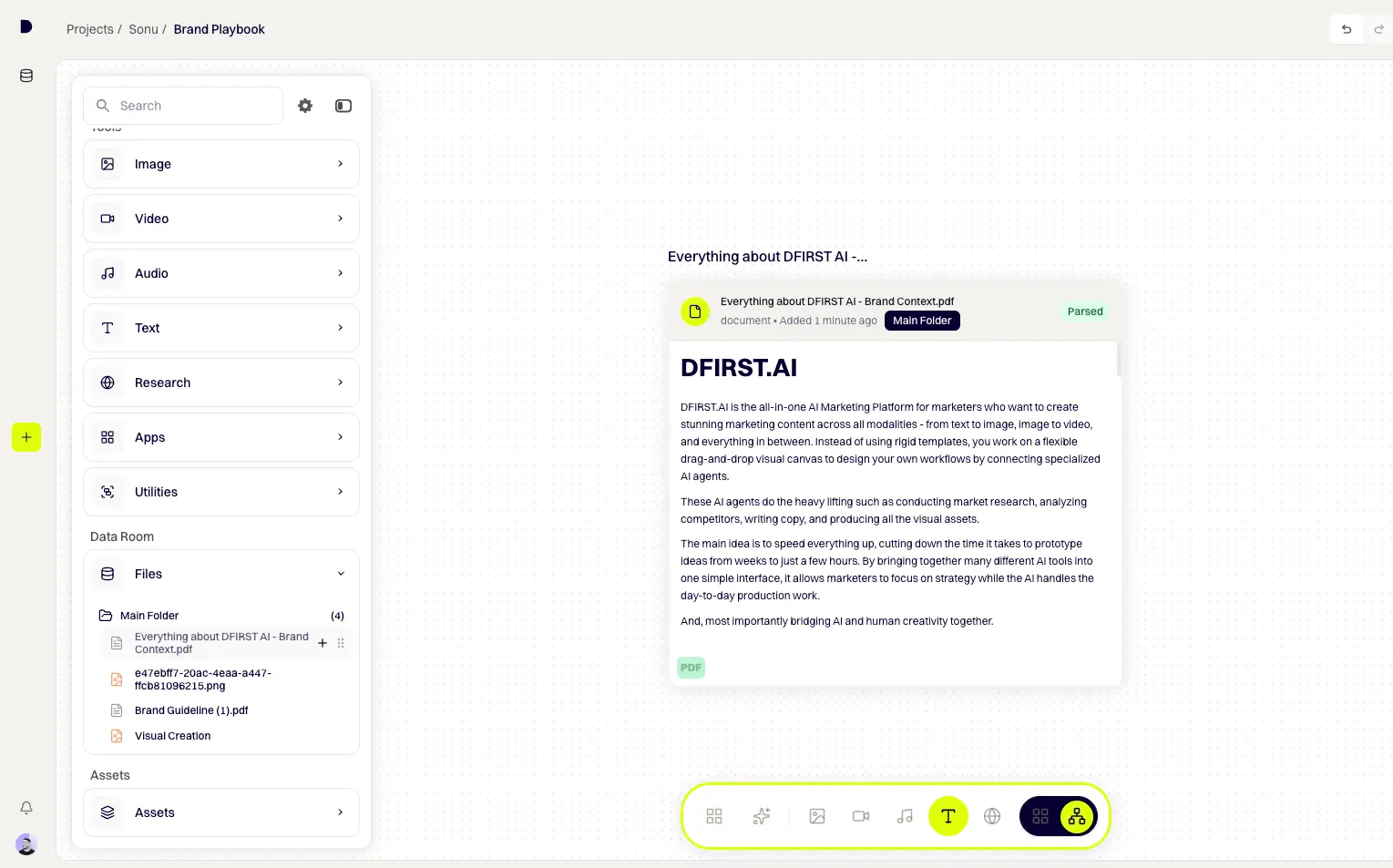
In the left toolbar, open the Data Room section, find your brand guidelines file, hover over it, and click the + button. The file appears on your canvas as an Input Node, ready to connect.
Where to find it: Left toolbar → Data Room → Files → Main Folder → hover over file → click +
Step #2: Add your past-performing ads (optional but recommended)
Repeat the same action for a file containing your best-performing ads from the last 6 months. The AI will use these as voice and tone references — not just style guides, but real examples of what converts for your audience.
Step #3: Add a Text Node to the canvas
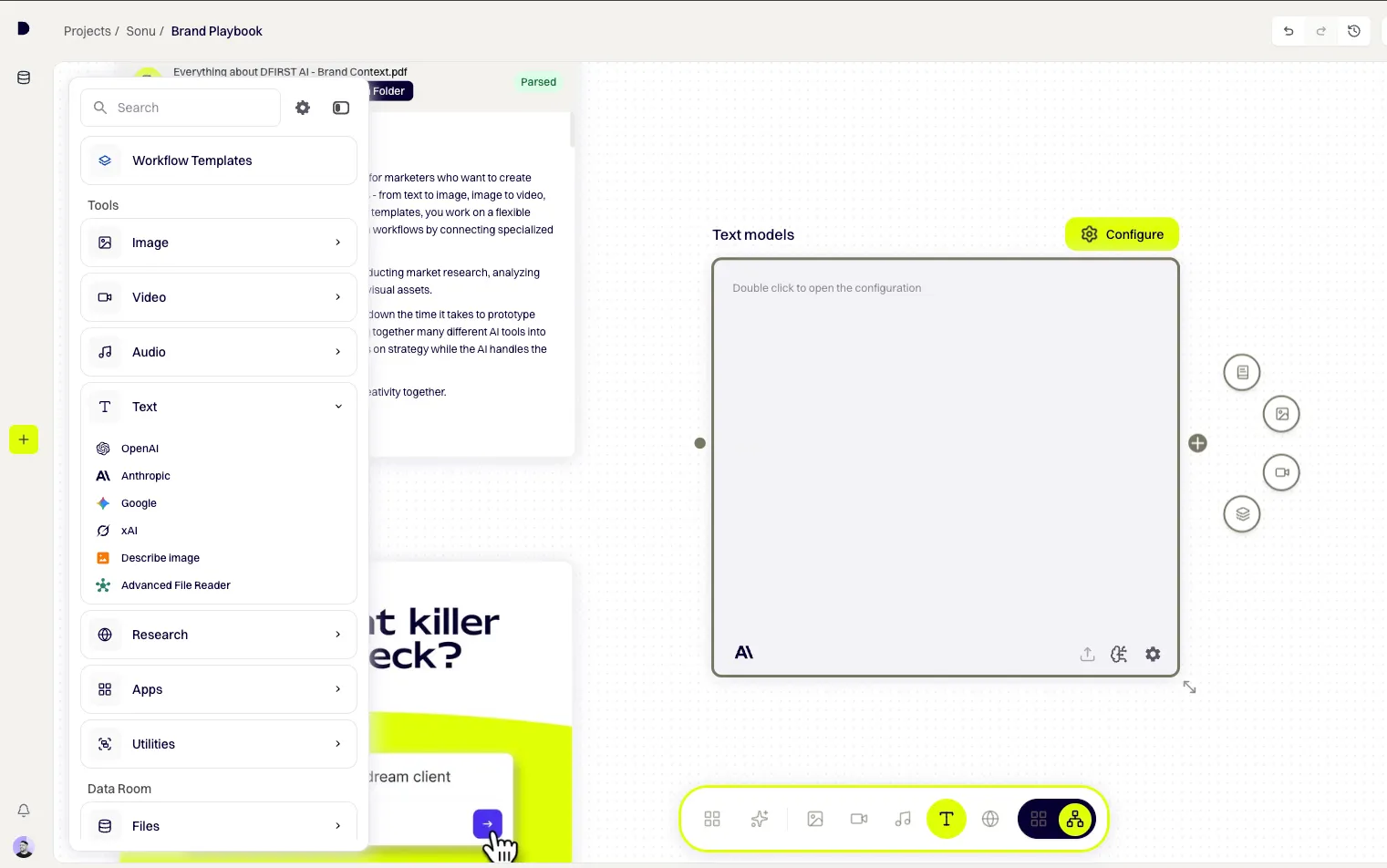
In the left toolbar, expand Tools → TEXT, hover over Anthropic, and click the + button. A Text Node appears on the canvas, ready for configuration.
Where to find it: Left toolbar → Tools → TEXT → hover over Anthropic → click +
Step #4: Connect both inputs to the Text Node
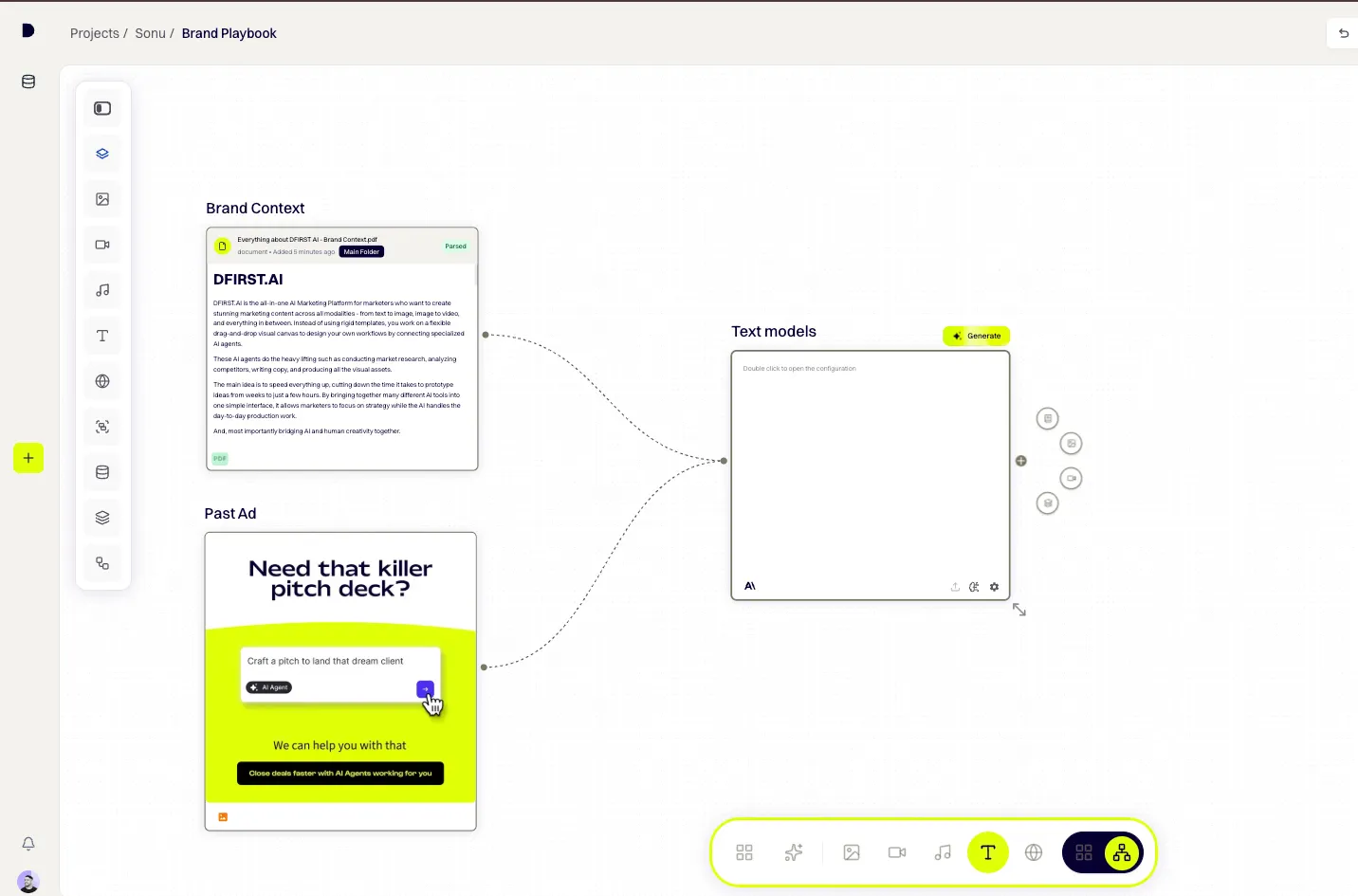
Hover over your brand guidelines node until connection points appear on its edges. Click and hold the right-side output point, then drag the line to the left-side input point of the Text Node. Repeat for the past-ads node. Two connecting lines now feed into the Text Node — context flows automatically.
Step #5: Configure the model
Click ⚙ Configure on the Text Node. The configuration panel opens with the header "Configuring: Text models". Click the model name in the bottom-left corner of the panel and select Claude Opus 4.5 from the picker.
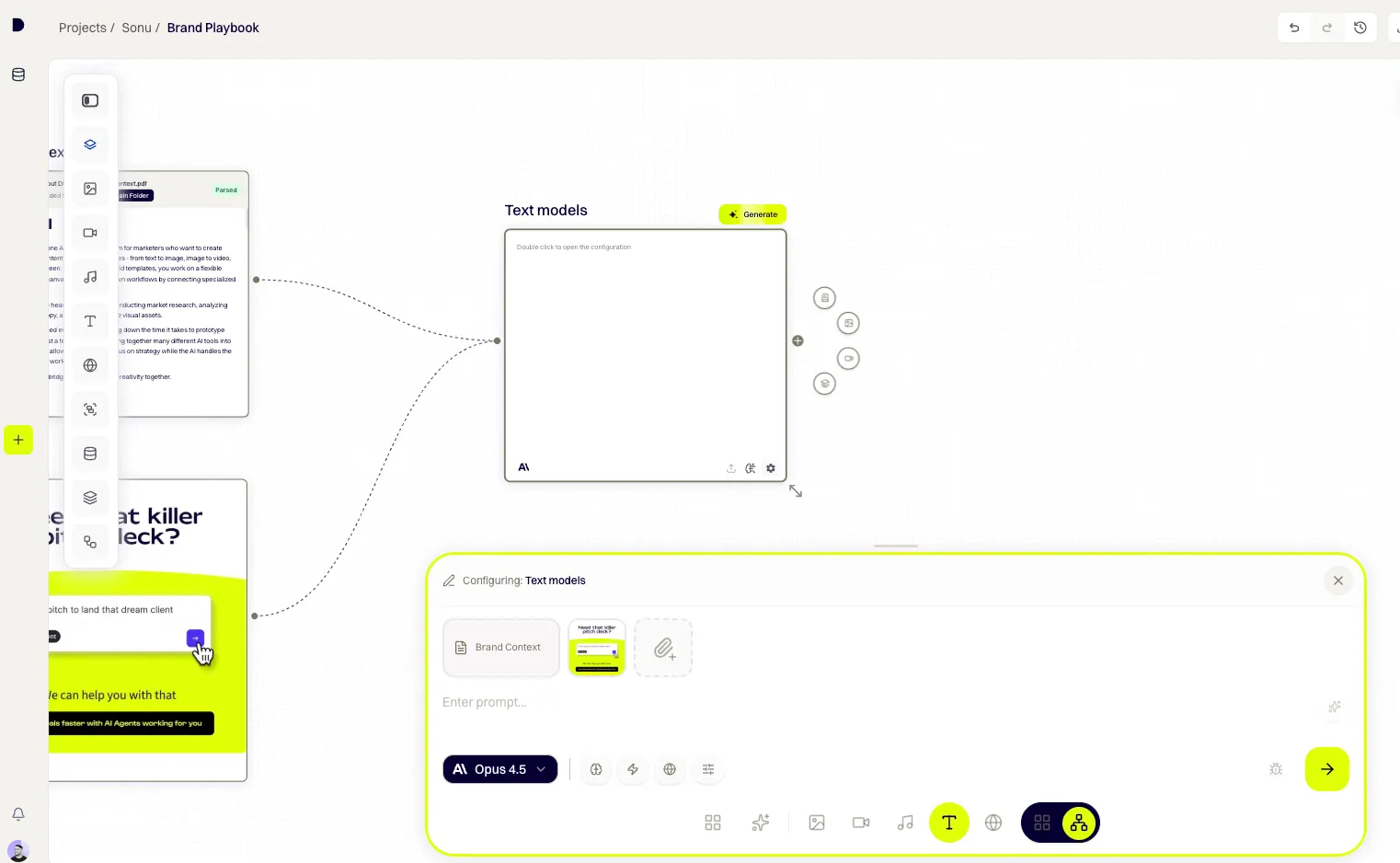
Step #6: Write the prompt as an instruction, not a brief
In the prompt field, write what you want the AI to do — not what your brand is. The brand context flows in through the connectors, so the prompt should be short and action-oriented. Aim for 30–60 words.
Example prompt:
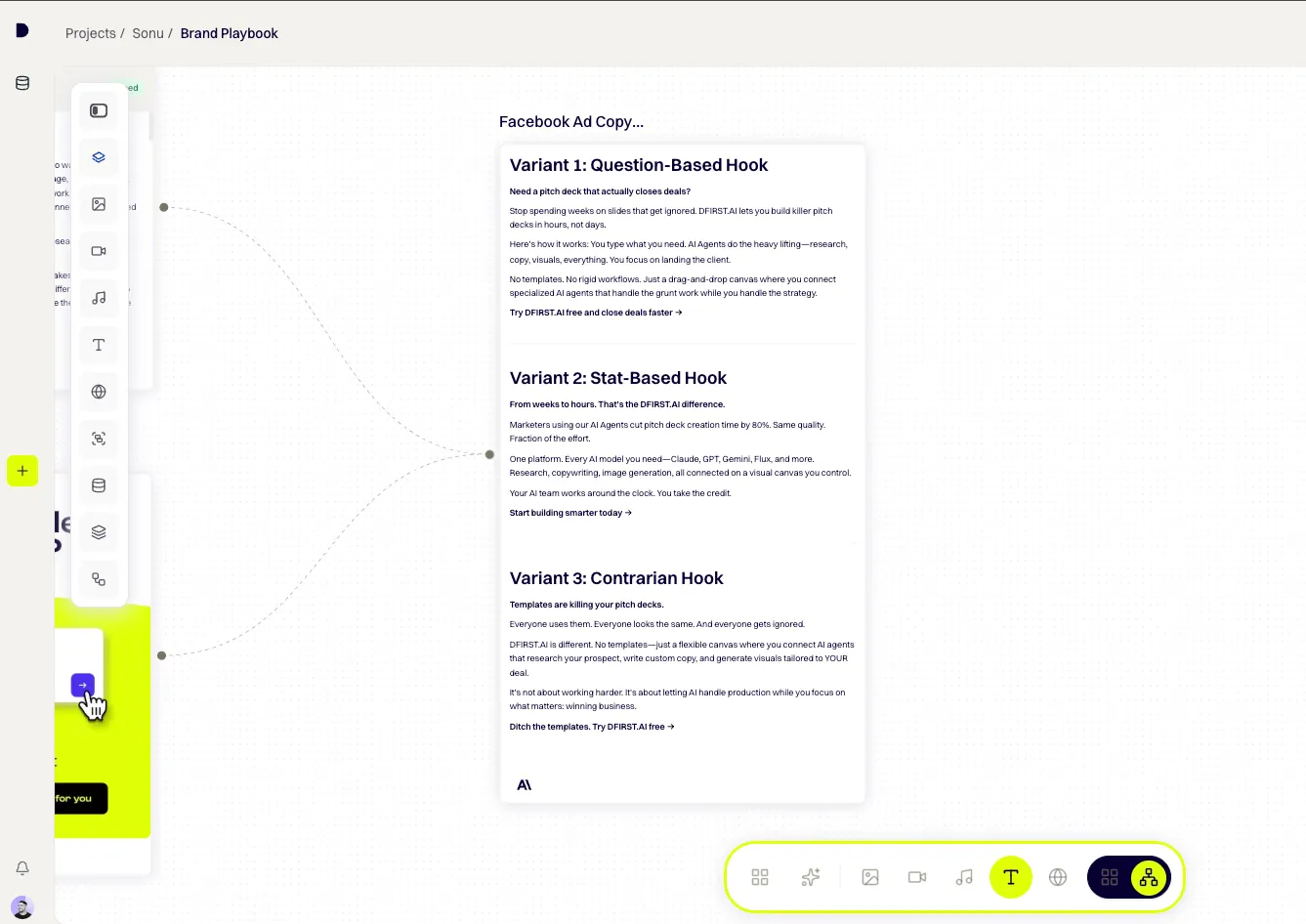
Write three Facebook ad copy variants for our new product launch. Each variant under 150 words. Direct, punchy tone. Lead with the core benefit. End with a clear CTA. Vary the hook style across the three: one question-based, one stat-based, one contrarian.
Learn how to generate ad copy with AI using DFIRST. Connect your brand to a Text Node, write a short brief, and get campaign-ready variants in minutes. Uses: Text Node · Claude Opus 4.5 · Data Room · Enhance prompt with AI
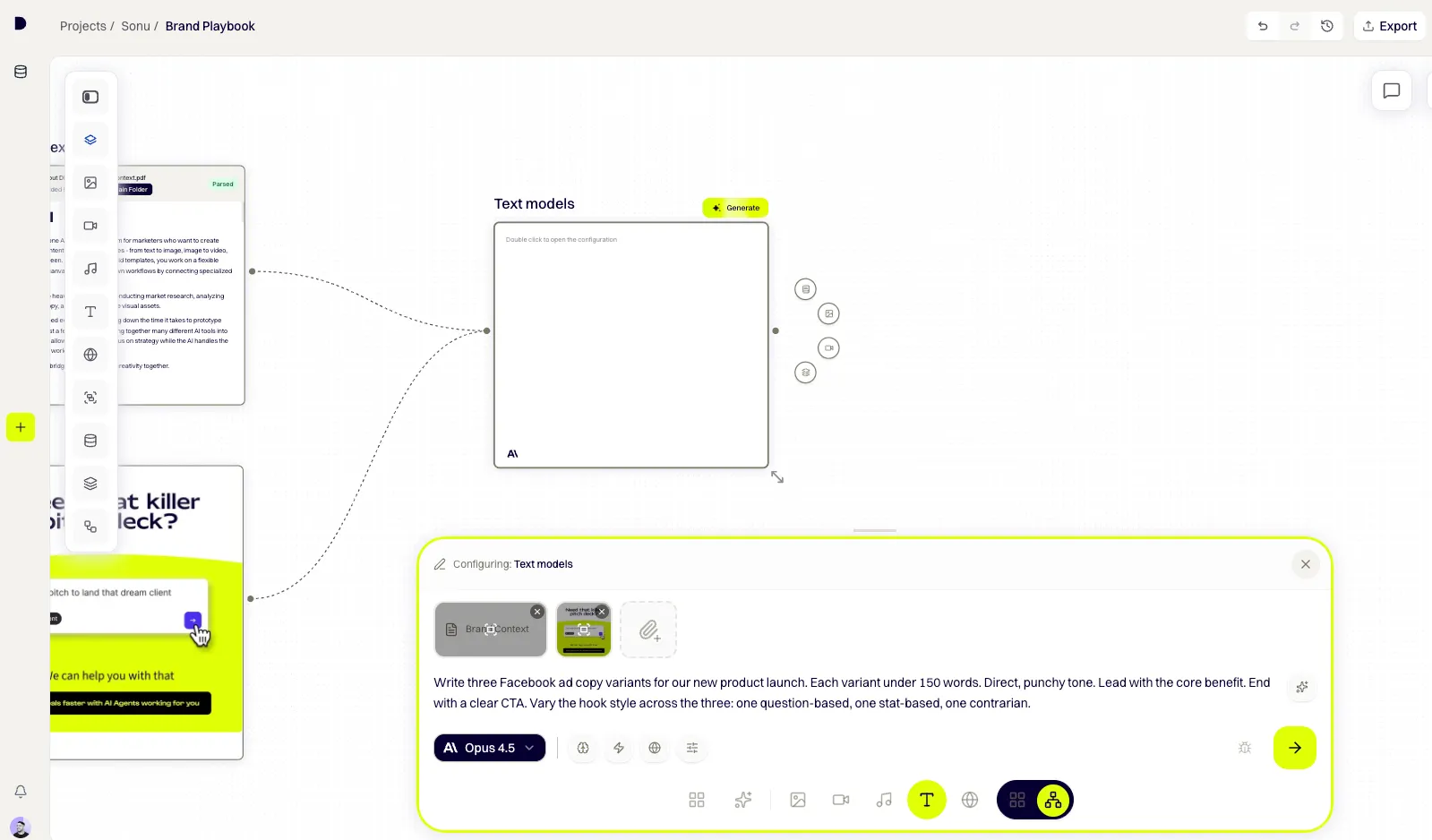
Step #7: Enhance the prompt (optional but recommended)
Click the ⚡ Enhance prompt with AI icon in the configuration panel. DFIRST rewrites your brief with more technical detail — formatting hints, tone refinements, structural cues. Takes 7–15 seconds and usually improves output quality on the first try.
Step #8: Click Generate
Click Generate in the top-right of the node. Your three ad variants appear inside the Text Node card within ~22 seconds. Each generation costs ~1–2 credits depending on the model and output length.
Pro tip: When your Data Room contains both brand guidelines and past converting ads, the AI doesn't just match your voice — it learns what your audience actually responds to. Even 3–5 winning ads from the last 6 months is enough to lift output quality noticeably. Skip this and the AI is guessing what works.
Variations and alternate approaches
Simpler path — Feed View, no canvas
If you're new to DFIRST, switch to Feed View and click the T Text icon in the bottom toolbar. Type your prompt, choose a model, hit Generate. Faster setup, but you lose the Data Room connection — so the AI works without your brand context. Best for a quick first pass.
Advanced — multi-platform copy workflow
After your Text Node generates the Facebook ad copy, drag from its output to a new Text Node configured for Instagram captions, then another for an email subject line. All three pull from the same brand context upstream. One brief, three platforms, one click of RUN to generate everything.
Advanced — Universal Tool for fast rewrites
After you have your first ad copy, drag from the Text Node's output into empty canvas space — DFIRST creates a Universal Tool node. Type a quick command like "Rewrite these ads with a more direct, less corporate tone" and click Generate. Faster than reconfiguring the original node when you just want to iterate on tone.
Why it matters: what this unlocks
On-brand copy without re-briefing every time. Your brand context lives in the Data Room. Every generation pulls from it automatically. You stop pasting tone-of-voice docs into prompt fields.
Multiple variants in one shot. Ask for three or five ad variants in the prompt and get all of them back in a single generation. Test which one wins without setting up another workflow.
Reusable for the next campaign. Save your setup as a Workflow Template. Next launch, you swap the prompt and keep everything else.
Plugs into creative workflows. The output isn't a file you copy somewhere else. It's a node. Connect it to an Image Node for ad creative, or a Video Node to script a short-form ad.
Tweak the prompt, keep the context. When you refine the instruction, your brand context stays connected. You're editing the brief, not rebuilding it.
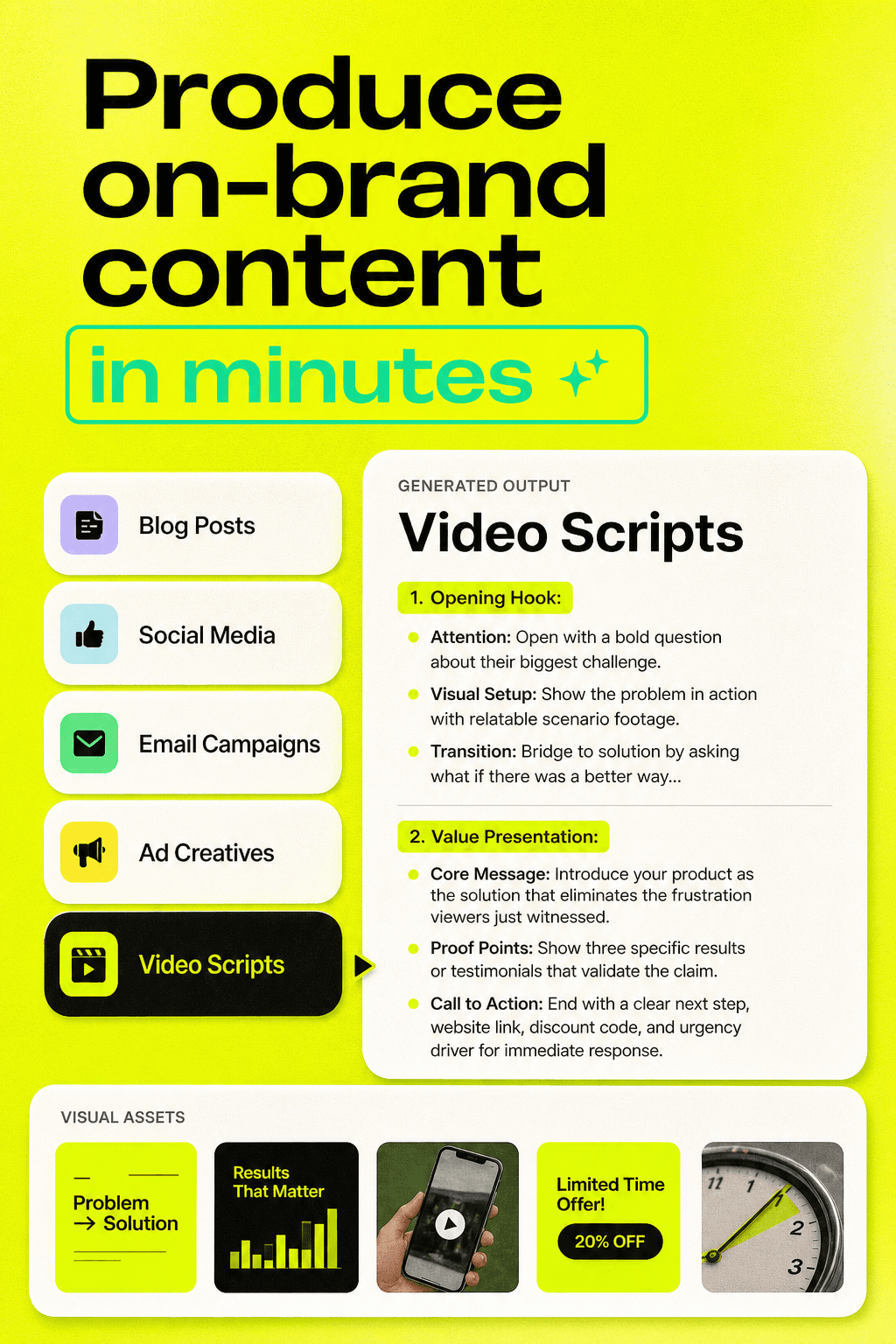
Produce on-brand content
GPT Image
Nano Banana
Runway
Claude
Recraft
Instagram Scraper
Google Search
Deep Research
Common issues and fixes
If the output sounds generic and off-brand: Check that your Data Room nodes are actually connected to the Text Node. The connector lines should be visible on the canvas. If they're connected but the output is still generic, the file in your Data Room probably doesn't have enough specific voice detail. Add a paragraph on tone, who you're talking to, and the words you never use.
If the output ignores the format you asked for (word counts, CTA placement, structure): Move the format constraints earlier in the prompt. Use specific numbers. "Under 150 words" works better than "short." "End with a CTA" works better than "make it actionable."
If the AI hallucinates product details: Tighten what's in the Data Room. Upload a precise one-page product description that covers specs, pricing, and positioning. The AI invents details when the source doesn't supply them.
If the same prompt produces wildly different results each time: Switch to Claude Opus 4.5. Its reasoning mode produces more consistent output than the faster models. Use Sonnet only after the prompt is locked.
What to do next
Generate matching ad creative. Connect your Text Node output directly to an Image Node. The ad copy becomes context for the visual, so the image matches the message rather than being briefed separately.
Build a multi-platform copy workflow. Chain Text Nodes for Facebook, Instagram, LinkedIn, and email — all pulling from the same Data Room context, all generated with one click of RUN.
Save it as a Workflow Template. Open Workflow Templates in the toolbar and save your current setup. Next campaign, you launch it with one click and only swap the prompt.
Share It On:
